
Paper receipts fade. Ink disappears, thermal paper turns blank in a hot car, and the slip for a $400 business purchase becomes an unreadable scrap by the time tax season arrives. A receipt scanner for taxes fixes that by turning each paper slip into a digital record the moment you receive it — photographed, read, categorized, and filed where you can find it in seconds. This guide explains what the IRS actually accepts, how to scan receipts so the records hold up, and how to build a routine that takes minutes a week.
The stakes are higher than most owners realize. Every business expense you can prove is a deduction that lowers your taxable income. Every expense you cannot prove is money you pay tax on anyway. A $200 dinner with a client, a $90 software subscription receipt, a $600 flight — each one needs a record, and the receipt is the record. The scanner is not about being organized for its own sake; it is about keeping deductions you have already earned.
What a Receipt Scanner for Taxes Actually Does
A receipt scanner is any tool — a phone app, a desktop scanner, or a multi-function printer — that photographs or scans a paper receipt and saves it as a digital file, usually a PDF or an image. The better ones also read the receipt with OCR, pulling out the vendor name, the date, and the total automatically, and let you add a category and a note about the business purpose. The file then lives in a searchable archive instead of a drawer.
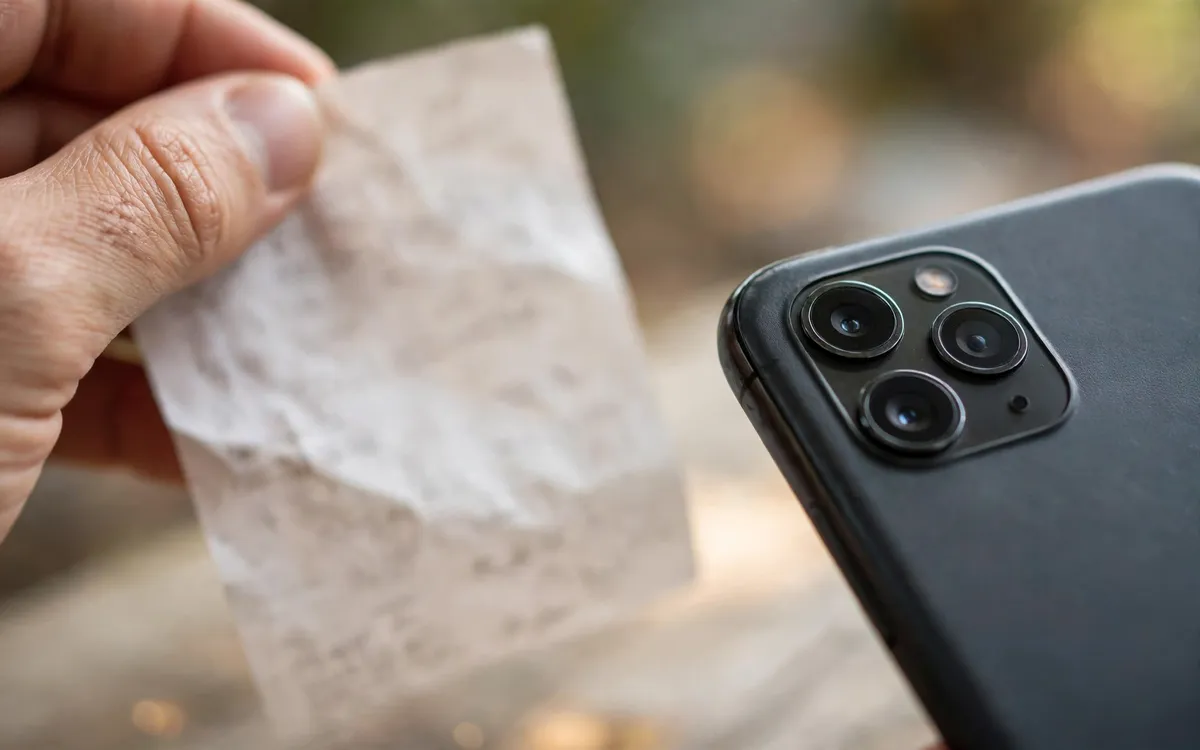
The phone in your pocket is the most practical scanner most owners will ever need. Modern phone cameras are sharp enough to capture a receipt clearly, and a good scanning app straightens the image, boosts the contrast, and saves it as a PDF. The habit that matters is scanning the receipt the day you get it, while you still remember what it was for. A receipt scanned today with a one-line note is a complete record; a receipt found three months later with no note is a puzzle.
Dedicated receipt apps add organization on top of capture: they sort receipts by vendor and date, total them by category, and export reports at tax time. Some connect to accounting software, so a scanned receipt can attach itself to the matching expense. That connection is convenient, but it is not required. A simple folder system — one folder per year, one subfolder per month, files named with the date and vendor — does the same job with tools you already own.
Desktop scanners and multi-function printers suit a different pattern: businesses that receive a stack of receipts at once, such as a week's worth from a company card, and want to process them in one sitting. A sheet-fed scanner can chew through fifty receipts in minutes. The trade-off is that the stack has to come to the scanner, which means receipts pile up until someone deals with them. The phone wins on habit; the desktop scanner wins on volume.
What the IRS Wants From Your Receipts
The IRS does not require a specific app or format. It requires records that prove four things about a business expense: the amount, the date, the place, and the business purpose. A receipt usually shows the first three — amount, date, and vendor — and you supply the fourth with a note. For a meal, that note should say who you ate with and what business you discussed. For travel, it should say where you went and why. Write the note the same day; a month later you will not remember.
Electronic records are acceptable. The IRS accepts digital copies of receipts as long as they are complete, readable, and stored in a way that preserves them. A clear phone photo saved as a PDF qualifies. A blurry photo where the total is unreadable does not. The standard is simple: could someone else read this file a year from now and understand the expense? If yes, the record is good.
Keep your records for at least three years from the date you file the return they support, which is the general IRS rule. If your income was underreported by more than 25 percent, the window stretches to six years, so keeping six years of records is the safer habit for a business whose income varies from year to year. Employment tax records have their own four-year rule. When in doubt, keep the record — storage is cheap and a missing receipt is expensive.
There are two expenses where the rules are stricter. Business meals are generally 50 percent deductible, and the deduction depends on that note about who attended and what was discussed. Lodging has no such percentage limit, but the IRS still wants the business purpose documented. Entertainment, by contrast, is generally not deductible at all, so keep it in a separate category and do not mix it with meals.
Scan Receipts the Right Way: A Routine That Takes Minutes
Good scans start with light and a flat surface. Lay the receipt on a plain background, hold the phone directly above it, and make sure the whole receipt is in the frame with nothing cut off. A receipt folded in half or curled at the edges will scan badly, so flatten it first. If the receipt is long — a hotel folio, for example — scan it in two overlapping images rather than shrinking it until the text is unreadable.
Check the scan before you throw the paper away. Zoom in on the total and the date and make sure both are readable. If the image is blurry or the total is cut off, retake it immediately. The thirty seconds you spend checking now is worth far more than the hour you would spend reconstructing the expense later. Once the scan is good, file it the same day: year folder, month subfolder, file name with the date and the vendor.
Name your files so they are searchable without opening them. A name like 2026-11-18-office-depot-supplies.pdf tells you everything you need to know; a name like IMG_4821.jpg tells you nothing. Most scanning apps let you set a naming pattern, and a consistent pattern turns a folder of five hundred receipts into a record you can actually search.
Back up the archive in two places. A cloud drive plus a local copy on an external drive is the minimum for records your taxes depend on. Check once a quarter that the backup actually opens and that recent scans are in it. A backup you have never tested is a hope, not a plan.
From Receipt Scanner for Taxes to a Clean Tax Return
Scanning is only half the job; the other half is turning the archive into totals your tax return can use. Once a month, go through the month's receipts and confirm that each one has a category and a business purpose note. The ones that do not are the ones to fix while the memory is fresh. Then total the month by category and compare it with your bank statement for the same period. The two should tell the same story.
The monthly total by category is what flows into your books. If you keep a spreadsheet tracker, the receipt totals feed it directly, and our guide to building a business expense tracker in Excel shows how to structure the categories so the year-end numbers transfer straight onto Schedule C. If you keep your books in QuickBooks, scanned receipts can attach to expenses and feed the same categories, and our guide to scanning receipts into QuickBooks Online walks through the photo-to-file route for batches.
At year end, the archive pays for itself. Instead of reconstructing a year of spending from memory and bank statements, you pull the category totals from the archive, hand them to your tax professional, and answer questions with files instead of guesses. The return gets filed faster, the deductions are documented, and an audit — if one ever comes — is an exercise in pulling files, not a scramble.
One more connection is worth making: receipts and bank statements prove different halves of the same expense. The statement proves the money left your account; the receipt proves what you bought and why. Keep both, and keep them consistent. When a statement line and a receipt disagree — a different amount, a different date — find out why before you file, because an auditor will ask the same question.

Paper, Phone App, or Desktop Scanner: Which Fits Your Volume
The right choice depends on how many receipts you handle. A freelancer with a dozen receipts a month needs nothing more than a phone and a folder system. The app you already have — your phone's camera plus a cloud drive — is free and always with you. The only investment is the habit.
A business with fifty to a hundred receipts a month benefits from a dedicated scanning app. The OCR that reads the vendor and total automatically saves real time at that volume, and the category totals and reports start to matter. Most of these apps cost a few dollars a month, which is a fair trade when they save an hour of data entry. Before you pay, check whether your accounting software already includes receipt capture — QuickBooks Online has it built in, and our guide to choosing a receipt scanner for QuickBooks compares the built-in capture with standalone apps and converters by volume.
A business with hundreds of receipts a month — a restaurant, a retail shop, a company with traveling staff — needs a desktop scanner and a real workflow. Someone owns the process, receipts arrive on a schedule, and the scanning happens in batches. At that volume, the question is not which app to use but who is responsible for the archive, and the answer should be written down, not assumed.
Whichever route you choose, the test is the same: can you find any receipt from any month in under a minute, and could someone else read it and understand the expense? If yes, the system works. If no, the system is decoration, and the fix is a simpler routine you will actually follow, not a fancier tool you will not.