QBO to CSV Converter
Turn a QuickBooks QBO, OFX, or QFX file into a clean CSV or Excel spreadsheet — dates, descriptions, amounts, and transaction IDs, fully free with no account.
Or drop a QBO, OFX or QFX file here
Try it without your own data first:
Bank-grade security — No account needed · Processed in memory, never stored
How to convert a QBO to CSV

Get your QBO file
Download the .qbo, .ofx, or .qfx file from your bank, or use one you already have on your computer.

Upload it here
Drop the file in. The tool reads its transactions itself — there is nothing to map — and shows the statement period and totals.

Check the preview
Review the first 50 rows and the money-in, money-out, and net totals, plus any warnings about the file itself.

Download CSV or Excel
Save the spreadsheet — both downloads are fully free, with every row from the file included.
A QBO file only QuickBooks can read — until it is a spreadsheet
This converter runs in the opposite direction from most tools on this site. A QBO (Web Connect) file does exactly one job well: feeding transactions into QuickBooks. For everything else, it is the wrong shape. It is a nested tag format written for machines — open one and you see markup, not transactions. You cannot sort it, filter it, or hand it to a client who does not run QuickBooks and expect them to read it.
Converting the file to CSV or Excel turns that markup into rows anyone can read: one transaction per line, with its date, type, description, amount, and the transaction ID (FITID) QuickBooks itself uses to spot duplicates. That makes this the auditing and sharing route for a Web Connect file — the version you send a client who works in another system, attach to a review, analyze in a pivot table, or keep when you are moving away from QuickBooks entirely. Nothing about the underlying data changes; only its shape does.
The same converter also reads the QBO file’s two close relatives: plain .ofx files from banks and .qfx files from Quicken. Underneath, all three are the same OFX data, so all three come out as the same five-column spreadsheet — a small mercy when a folder holds a mix of downloads from different banks and different years.
| Part of the file | What it holds | Where it lands |
|---|---|---|
| Statement header | Bank, account, currency, statement period | The preview summary, so you can confirm you converted the right file |
| Transaction (STMTTRN) | Date, type, amount, payee and memo text | One row per transaction in the spreadsheet |
| FITID | The bank’s unique ID for that transaction | The Transaction ID column, kept intact |
| Ledger balance (LEDGERBAL) | Closing balance for the statement period | The totals panel, so the spreadsheet can be tied back to the bank |
How to convert a QBO file to CSV or Excel
Step 1 — Get the file. Download the .qbo, .ofx or .qfx file from your bank, or find the one already sitting on your computer — a file a client sent you works just as well. Files up to 10 MB are accepted.
Step 2 — Drop it in above. Unlike a CSV conversion, there is nothing to map: the converter reads the OFX data and identifies the account and statement period itself.
Step 3 — Check the preview and tie it out. Review the first 50 transactions, the statement period, and three numbers: money in, money out, and the net change. Add the net change to the balance the account had at the start of the period and you should land on the file’s ledger balance, which is shown when the file carries one. Read any warnings before you rely on the data — a missing closing balance or a repeated transaction ID is listed, not hidden, because a spreadsheet built from a flawed file inherits the flaws.
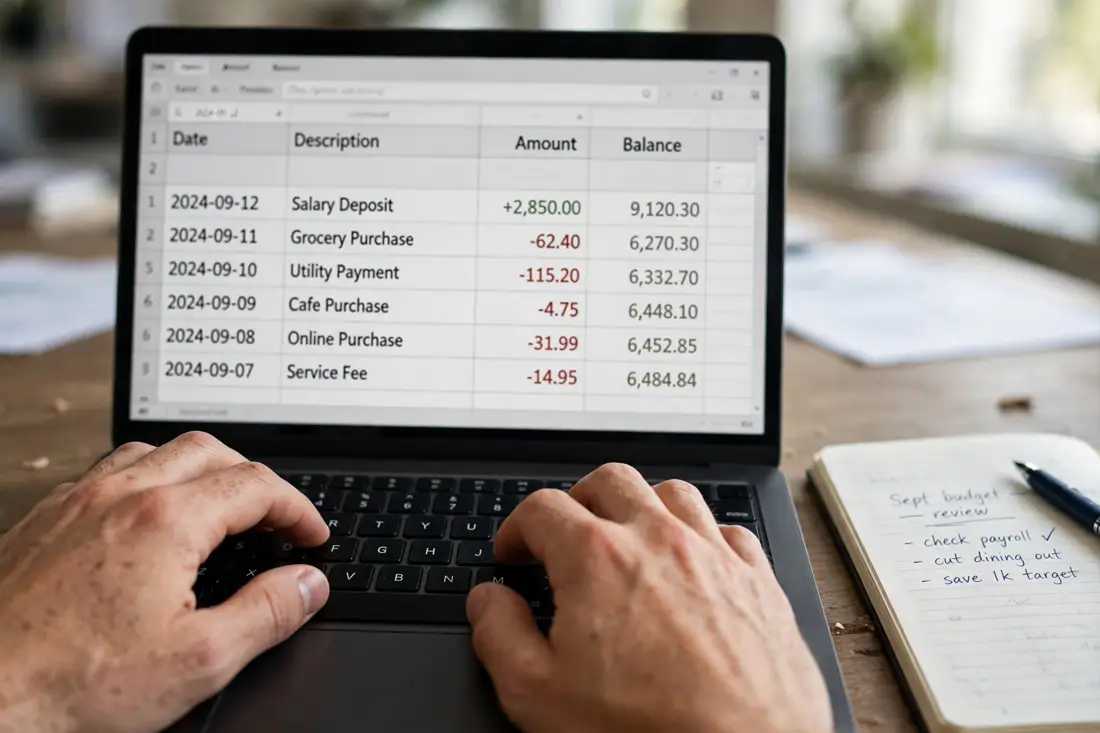
Step 4 — Download CSV or Excel. Both files contain every transaction from the original, not just the previewed rows, in the same five columns — Date, Type, Description, Amount, Transaction ID — and both are fully free. Here is what the middle of a converted file looks like (sample data, shown for illustration):
| Date | Type | Description | Amount | Transaction ID |
|---|---|---|---|---|
| 11/03/2026 | CREDIT | Client payment — invoice 1042 | 1,250.00 | 20261103001 |
| 11/04/2026 | DEBIT | Cloud hosting | -96.40 | 20261104001 |
| 11/06/2026 | DEBIT | Office rent | -1,800.00 | 20261106001 |
The totals those rows produce: money in $1,250.00, money out $1,896.40, net change −$646.40. Three tagged blocks inside the QBO become three readable rows, IDs intact, ready to sort or share. Dates are written as real dates, so spreadsheets sort them correctly, and descriptions are copied word for word — nothing is cleaned up or renamed on the way out.
When a QBO will not convert — or converts with warnings
The file is not OFX at all
Usually the download was cut short, or the file is not what its name claims — a PDF statement renamed to .qbo is the classic case, and a PDF cannot be converted here. Download the Web Connect file from your bank instead. If the file genuinely is OFX and still fails, the QBO File Checker will read it and name the problem.
The structure inside the file is malformed
Some exporters write OFX with unclosed or mismatched tags. The data is usually all there — it is the wrapping that is broken. The OFX to QBO fixer rebuilds the file as clean OFX 1.02, after which it converts — and imports — the way it should have in the first place.
The transaction list comes out empty
The file’s statement section covers a period with no activity, or the download was a balance-only response rather than a transaction file. Check the period shown in the preview summary: if it is not the period you asked your bank for, re-download with the date range you actually need.
Warnings about duplicate IDs or a missing balance
Two warnings deserve a pause before the data goes anywhere that matters. A repeated transaction ID means QuickBooks would have skipped a real transaction as a supposed duplicate had you imported the file directly; in the spreadsheet both rows appear, and the shared ID tells you exactly which transactions to question. A missing closing balance means the rows cannot be tied back to the bank’s target — they may be perfect, but there is no independent proof the set is complete. The same ID column also defuses the overlap trap: sort by Transaction ID and rows downloaded twice, from overlapping date ranges, sit next to each other sharing an ID no two genuine transactions ever share.
Keep the QBO, download the CSV, or download Excel?
| Route | Best for | Where it breaks |
|---|---|---|
| Keep the QBO as it is | Importing into QuickBooks — the job the file was built for | Nobody without QuickBooks can read it; nothing can be sorted, filtered or annotated |
| Download the CSV (this page) | Moving data into other software, or round-tripping it back later | Plain text only — no formatting, and dates or IDs can be mangled if someone re-saves it carelessly from a spreadsheet app |
| Download the Excel file (this page) | People: reviewing, sorting, annotating and sharing with clients | Less universal than CSV for machine import — some systems want the plain text version instead |
The round trip is a real workflow, not a curiosity: convert a QBO to a spreadsheet, clean up payee names or remove rows that should never be imported, then send the result back through the CSV to QBO converter, which maps the columns back into a Web Connect file with a balance-chain check. And if the job is not one file but a stack of them, the Bulk Exporter for QuickBooks combines up to 10 QBO, OFX or QFX files into one CSV or Excel sheet with a Source File column. Need a printed record instead of a spreadsheet? The QBO to PDF converter makes a readable statement from the same file.
Similar tools
More converters that work with QBO and spreadsheet files.
 QBO to IIF ConverterConvert a QuickBooks Web Connect (QBO) file into IIF for QuickBooks Desktop.100% FreeOpen tool
 QBO to PDF ConverterMake a readable PDF statement from a QBO file — no QuickBooks needed to view it.100% FreeOpen tool
 OFX to CSV ConverterRead a bank OFX file into a clean CSV — one row per transaction.100% FreeOpen tool
 QFX to CSV ConverterOpen a Quicken QFX download as a spreadsheet — every transaction as a row.100% FreeOpen tool
 Bulk Exporter for QuickBooksCombine up to 10 QBO, OFX or QFX files into one clean CSV or Excel sheet.100% FreeOpen tool
 CSV to QBO ConverterConvert any CSV or Excel file into a QBO file QuickBooks imports cleanly.Most popularOpen tool
Simple, transparent pricing
Start free. Only pay when you need more.
Free
Try it out — no card needed
- 8 pages free, forever
- CSV & Excel export
- Global banks support
- No credit card required
- All 34 free QuickBooks tools included
- ✕OFX / QFX export
- ✕Google Sheets
Basic
For light, occasional use
or $48/yr — save 20%
- 25 pages / month
- CSV & Excel export
- Global banks support
- All 34 free QuickBooks tools included
- Email support
- ✕Google Sheets
- ✕OFX / QFX export
Pro
Perfect for CAs & individuals
or $192/yr — save 20%
- 500 pages / month
- All export formats
- Google Sheets export
- Priority processing
- Smart Auto-Categorization (Beta)
- Pre-Export Analytics (Beta)
- All 34 free QuickBooks tools included
- Email support
- ✕API access
- ✕Team seats
Business
For CA firms & fintech teams
or $720/yr — save 20%
- 2,000 pages / month
- All export formats
- OCR for Scanned PDFs
- Direct Accounting Push (Coming Soon)
- Smart Auto-Categorization (Beta)
- Pre-Export Analytics (Beta)
- Secure Client Portal (Beta)
- API access
- 5 team seats
- All 34 free QuickBooks tools included
- Dedicated support
Frequently asked questions
How do I convert a QBO file to CSV?
Upload the .qbo file here. The tool reads the transactions inside it — date, type, description, amount, and the transaction ID (FITID) — and shows a preview with your totals. Download the CSV or the Excel file, both fully free with no account.
Can I also convert OFX or QFX files?
Yes. A QBO file is OFX format underneath, so the same converter reads .ofx files from banks and .qfx files from Quicken. All three produce the same spreadsheet every time: Date, Type, Description, Amount, Transaction ID.
How do I open a .qbo file without QuickBooks?
That is exactly what this page does — upload the file and read its transactions as a spreadsheet. A .qbo file is structured OFX text, not a spreadsheet, so opening it directly in Excel shows markup rather than rows. Converting it first gives you one readable row per transaction.
What does the Transaction ID column contain, and are amounts changed?
The Transaction ID is the FITID from your file — the unique ID QuickBooks uses to detect duplicates — kept intact so any row can be traced back to the exact transaction in the original file. It is blank only when the original file carried no ID. Amounts are copied exactly as they appear: credits stay positive and debits stay negative.
Can I convert a credit card QBO file?
Yes. Credit card downloads use the same QBO format with a credit-card section instead of a bank section, and this converter reads both. Charges come out negative and payments positive, matching how the card statement reads.
Is this converter free, and is my data stored?
Both downloads are fully free, with no account, for files up to 10 MB. Your file is processed in memory to build the conversion and is not stored afterwards. We never sell or share your financial data.