CSV to IIF Converter
Turn any bank transaction CSV into a QuickBooks Desktop IIF file: map your columns, set your account names, and download it free — no account needed.
Or drop a bank CSV export here
Try it without your own data first:
Bank-grade security — Fully free, no account needed · Processed in memory, never stored
How to convert a CSV to IIF

Export from your bank
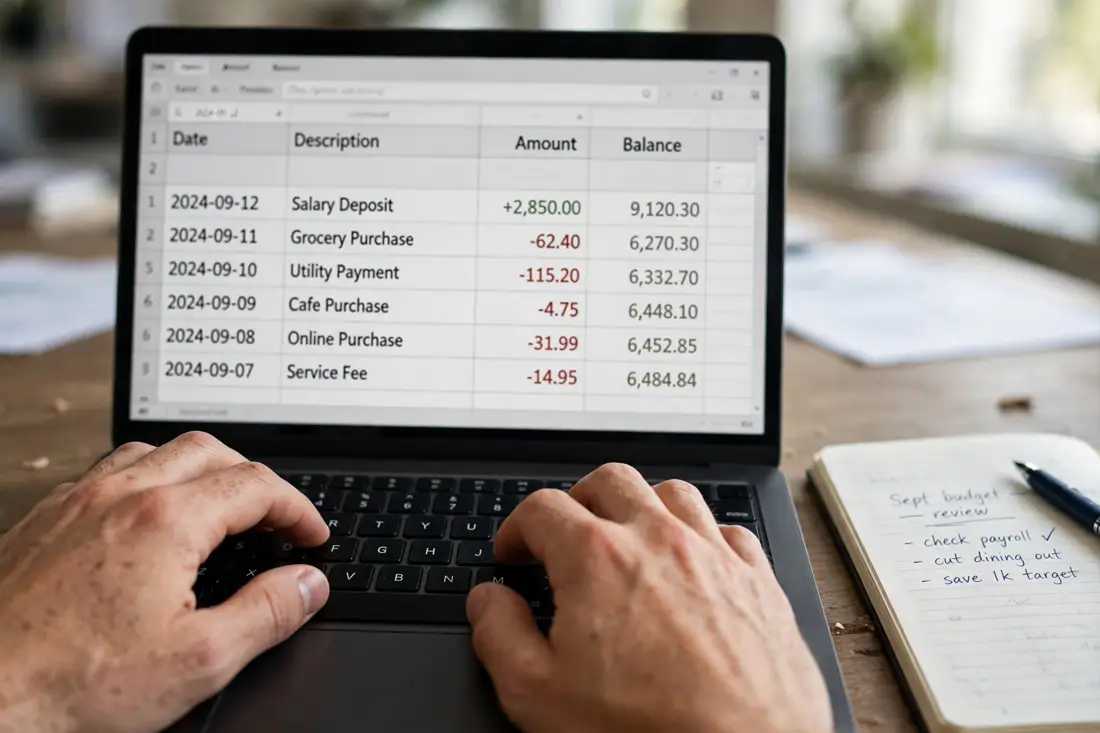
Download your transactions as a CSV from your bank's website — any export with date, description, and amount columns works.

Upload and check the mapping
Drop the CSV in. The tool auto-detects the column mapping from your header row, and changing a dropdown re-reads the file right away.

Set your account names
Enter your QuickBooks Desktop bank account, income account for deposits, and expense account for payments, exactly as named in your chart of accounts.

Download the IIF (free)
Save the file — every transaction is written as a balanced TRNS/SPL pair under the !TRNS/!SPL header rows.
Back up, then import
Back up your company file, then in QuickBooks Desktop go to File → Utilities → Import → IIF Files and choose the downloaded file.
QuickBooks Desktop has no CSV bank import — IIF is the bridge
If your books live in QuickBooks Desktop, the friendly CSV upload you may have seen in QuickBooks Online simply is not there. Desktop never got a CSV bank import. What it has accepted for decades is IIF — Intuit Interchange Format — a plain-text, tab-delimited format built for moving lists and transactions in and out of a company file. When your bank hands you a CSV and Desktop is where the books live, an IIF file is the bridge between the two.
The catch is that IIF is unforgiving to build by hand, and it is picky in ways a CSV never is. The file must open with header rows — !TRNS, !SPL and !ENDTRNS — that declare the columns in exactly the expected order. Every transaction needs two lines, not one: a TRNS line against the bank account and an SPL line carrying the opposite amount against an income or expense account, so each pair sums to zero. Dates must be written MM/DD/YYYY. And the account names are matched as text: they must be spelled exactly as they appear in your chart of accounts, or Desktop will offer to create new accounts you never wanted. One wrong character in a hundred-row file can spoil the whole run.
This converter handles the format rules for you. It reads your bank’s CSV, lets you check the column mapping, takes your own bank, income and expense account names, and writes a balanced IIF file you can download free. If some of your books live in QuickBooks Online instead, the same CSV belongs in the CSV to QBO converter — IIF is a Desktop-only format, and Online does not import it.
| Line | Where it appears | What it does |
|---|---|---|
| !TRNS | Header, once | Names the columns of every transaction line |
| !SPL | Header, once | Names the columns of every split (offset) line |
| !ENDTRNS | Header, once | Declares the marker that closes each transaction |
| TRNS | Once per transaction | The transaction itself: date, bank account, amount, payee — typed DEPOSIT or CHECK |
| SPL | Once per transaction here | The offsetting line, against the income or expense account |
| ENDTRNS | Once per transaction | Closes the block so the next transaction can begin |
How to convert a CSV to IIF with this converter
Step 1 — Export the CSV from your bank. Download the date range you need as CSV. Any export with a header row and date, description and amount columns works — Chase, Bank of America, Wells Fargo, Citi, Capital One and most regional banks and credit unions all export this shape. Keep the bank’s original file untouched; opening it in a spreadsheet first invites quiet edits to dates and amounts.
Step 2 — Upload it and check the mapping. Drop the file into the tool above (CSV files up to 10 MB). The tool reads your header row and auto-detects the date, payee and amount columns. Map either one signed amount column (money out negative) or a debit and a credit column — never both. If a dropdown is wrong, change it and the file is re-read right away. Rows that cannot be read are skipped and counted in the warnings, never silently dropped.
Step 3 — Set your three account names. Type the bank account these transactions belong to, the income account deposits should post against, and the expense account payments should post against — exactly as they appear in your Desktop chart of accounts, including the full colon path for subaccounts (Utilities:Electric, not just Electric). The defaults are Business Checking, Uncategorized Income and Uncategorized Expense; replace them with your real names. Changing a name and leaving the field re-runs the conversion.
Step 4 — Review the preview, then download. The preview shows the parsed transactions — date, payee and signed amount — with the first 50 rows on screen and every row in the download. A positive amount becomes a DEPOSIT: bank line positive, offset line negative against your income account. A negative amount becomes a CHECK: bank line negative, offset line positive against your expense account. Each pair sums to zero by construction, because both lines are written from the same rounded amount. Download the .IIF — it is fully free.
Step 5 — Back up, then import into Desktop. In QuickBooks Desktop, first make a backup (File → Back Up Company) — IIF imports cannot be undone in one step, so the backup is your way back. Then go to File → Utilities → Import → IIF Files, choose the downloaded file, and review the register entries it creates against your chart of accounts.
Working through a stack of monthly CSVs rather than one file? The Bulk Importer for QuickBooks merges many CSV files, maps the columns once and builds a single import file — IIF included.
| Line | Date | Account | Amount | Payee / memo |
|---|---|---|---|---|
| TRNS | 01/15/2026 | Checking | 1,000.00 | Acme Consulting — invoice 88 |
| SPL | 01/15/2026 | Sales Income | -1,000.00 | Acme Consulting — invoice 88 |
| ENDTRNS | ||||
| TRNS | 01/20/2026 | Checking | -250.50 | Riverbend Properties |
| SPL | 01/20/2026 | Rent Expense | 250.50 | Riverbend Properties |
| ENDTRNS |
Read the pairs: +1,000.00 and −1,000.00 sum to zero; −250.50 and +250.50 sum to zero. The bank account ends up $749.50 richer, income records the sale, and rent records the cost. (Sample data, shown for illustration.)
When an IIF import goes wrong
QuickBooks created accounts you did not want
The most common IIF accident. Desktop cannot find an account name from the file, offers to create it, and one accepted prompt for a typo later your chart of accounts has a near-duplicate that transactions scatter across. Cancel the import, correct the names here to match your chart exactly — subaccounts with their full colon path — and convert again. This is the mistake the backup exists for.
The entry is not balanced
The signature failure of hand-edited files: a TRNS and SPL that differ by a cent, or a split line deleted to “simplify” the file. Desktop may reject the block or post the difference somewhere unhelpful. Files from this converter are built as mirrored pairs from one rounded amount, so if you see this error, the file was changed after download — convert a fresh copy and import that.
Excel destroyed the file
IIF lives and dies by its tabs. Open the file in Excel and dates get reformatted, long numbers can be restyled, and saving replaces the tab delimiters with commas or spaces. The result looks similar and imports terribly. If you need to look inside an IIF file, use a plain text editor — count the ENDTRNS lines to check the transaction count — and never re-save from Excel a file you plan to import. To audit a Desktop export in a spreadsheet safely, go the other direction with the IIF to Excel converter.
Transactions land in the wrong month — or land twice
IIF dates must be MM/DD/YYYY; a day-first file does not error, it files April transactions in March. This converter always writes month-first. The second trap is the opposite of the QBO route: an IIF file carries no transaction IDs, so Desktop has no duplicate check — import the same file twice and you own two of everything. Keep the downloaded file with the backup you made, so any imported batch can be traced to exactly one CSV.
Three routes into QuickBooks Desktop, honestly compared
| Route | Where it shines | Where it breaks |
|---|---|---|
| Convert the CSV to IIF (this page) | Posts straight into the accounts you name; fully free; the file is readable text you can check before importing | No duplicate protection — re-importing doubles entries; one income and one expense offset account for the whole file, so you categorize in Desktop afterwards |
| Convert the CSV to QBO and use Web Connect | Imports through the bank-feed door, with a unique ID per transaction, so a re-import is recognized | The .QBO download is on Pro on that page; transactions land in the bank feed for review rather than posting directly to named accounts |
| Type the transactions in by hand | Nothing to convert; fine for two or three missing entries | Every row is a chance to transpose a digit or pick the wrong account — and there is no file left to audit afterwards |
Already have Desktop data in IIF form and need it back out? The IIF to CSV converter turns a Desktop export back into a plain spreadsheet you can review anywhere.
Similar tools
More converters that work with CSV and IIF files.
 CSV to QBO ConverterConvert any CSV or Excel file into a QBO file QuickBooks imports cleanly.Most popularOpen tool
 CSV to OFX ConverterTurn a spreadsheet of transactions into an OFX file — the format banks and finance apps exchange.100% FreeOpen tool
 CSV to QFX ConverterBuild a QFX file from CSV rows — Quicken's version of OFX, ready to import.100% FreeOpen tool
 CSV to QIF ConverterConvert CSV transactions into a QIF file for older Quicken versions and legacy apps.100% FreeOpen tool
 IIF to CSV ConverterTurn a QuickBooks Desktop IIF file back into a plain CSV you can review in any spreadsheet.100% FreeOpen tool
 IIF to Excel ConverterTurn a QuickBooks Desktop IIF export into a readable Excel or CSV sheet.100% FreeOpen tool
Simple, transparent pricing
Start free. Only pay when you need more.
Free
Try it out — no card needed
- 8 pages free, forever
- CSV & Excel export
- Global banks support
- No credit card required
- All 34 free QuickBooks tools included
- ✕OFX / QFX export
- ✕Google Sheets
Basic
For light, occasional use
or $48/yr — save 20%
- 25 pages / month
- CSV & Excel export
- Global banks support
- All 34 free QuickBooks tools included
- Email support
- ✕Google Sheets
- ✕OFX / QFX export
Pro
Perfect for CAs & individuals
or $192/yr — save 20%
- 500 pages / month
- All export formats
- Google Sheets export
- Priority processing
- Smart Auto-Categorization (Beta)
- Pre-Export Analytics (Beta)
- All 34 free QuickBooks tools included
- Email support
- ✕API access
- ✕Team seats
Business
For CA firms & fintech teams
or $720/yr — save 20%
- 2,000 pages / month
- All export formats
- OCR for Scanned PDFs
- Direct Accounting Push (Coming Soon)
- Smart Auto-Categorization (Beta)
- Pre-Export Analytics (Beta)
- Secure Client Portal (Beta)
- API access
- 5 team seats
- All 34 free QuickBooks tools included
- Dedicated support
Frequently asked questions
How do I convert a CSV file to IIF for QuickBooks Desktop?
Upload your bank's CSV export, check the mapping (date, payee, and an amount or debit/credit pair), and set your bank, income, and expense account names to match your chart of accounts. Download the IIF and import it in QuickBooks Desktop via File → Utilities → Import → IIF Files — after backing up your company file.
Why can't QuickBooks Desktop just import my bank CSV?
Desktop has no native CSV bank import — that upload exists only in QuickBooks Online. Desktop moves data through IIF files and Web Connect (QBO) files instead, so a bank CSV has to be converted into one of those formats before Desktop will touch it.
What are the TRNS and SPL lines in an IIF file?
They are the two halves of every transaction. The file opens with header rows (!TRNS, !SPL, !ENDTRNS) that declare the columns. Each transaction is then a TRNS line against your bank account, an SPL line carrying the opposite amount against your income or expense account, and an ENDTRNS marker. The pair always sums to zero — that is the double-entry rule IIF is built on.
Why do the account names have to match exactly?
Desktop matches account names as text, character for character. If a name in the file does not exist in your chart of accounts, Desktop typically offers to create it during import — which is how a typo becomes a duplicate account. Copy the names from your chart of accounts, and for a subaccount use the full path joined by a colon, such as Utilities:Electric.
What if my CSV uses debit and credit columns instead of one amount column?
Map both columns and leave the single Amount column unmapped. Debit rows (money out) become negative amounts and credit rows (money in) stay positive. A row that fills neither side is skipped and counted in the warnings so you can check it.
Is this converter free, and is my data stored?
Yes — the IIF download is fully free, with no account and no Pro plan required, for CSV files up to 10 MB. Your CSV is processed in memory to build the conversion and is not stored afterwards.