PayPal Payout to QBO Converter
Turn a PayPal activity CSV into QuickBooks-ready books: gross sales, refunds, and fees correctly split through a clearing account — with a payout tie-out check.
Or drop your PayPal CSV export here
Try it without your own data first:
Bank-grade security — No account needed · Processed in memory, never stored
How to record PayPal payouts in QuickBooks

Download from PayPal
In PayPal, go to Activity → Statements → Activity download and choose CSV — the file with Date, Type, Gross, Fee, and Net columns, including its bank transfer rows.

Upload it here
Drop the CSV in (max 10 MB, no account). The tool parses PayPal's activity layout and splits the activity into periods at each withdrawal to your bank.

Review the tie-out
Check each period's gross, fees, refunds, and chargebacks, and confirm the period ties out to its withdrawal amount. Activity not yet withdrawn shows as an open period.

Download and import
Download the clearing-entries CSV free, or the .QBO on Pro, and import it into a PayPal Clearing account in QuickBooks. Match each transfer line to the real withdrawal deposit in your bank feed.
A PayPal withdrawal is a transfer, not a sale
PayPal pays you on two different clocks. Buyers pay the moment they check out, and the money lands in your PayPal balance at gross, with PayPal's fee taken on each payment. You get paid when you withdraw — and a withdrawal is simply everything that has accumulated since the last one: this week's sales, minus fees, minus a refund you issued for last month's order, minus a chargeback, with nothing in the bank-feed line to say which is which. Book that withdrawal as revenue and income is understated by every fee and refund inside it, fee expense disappears from the profit and loss statement, and money that was never a sale at all gets reported as if it were.
PayPal's own activity download is the document that untangles this, because it records every payment at gross with its fee and its net printed beside it, and it records every withdrawal as a row of its own. Run that file through a clearing account — payments in at gross, fees and refunds against them, each withdrawal out as a transfer to checking — and the withdrawal stops being a mystery number. It becomes the proof: if a period's activity nets exactly to the withdrawal that closed it, the period is reconciled. That is the split this converter builds, period by period.
| Row in the activity download | What it really is | Line it becomes |
|---|---|---|
| Payment received | A buyer's payment — website payment, express checkout, or invoice payment — shown at gross with its fee | Income into PayPal Clearing; the fee goes to the fees line |
| Refund or reversal | Money returned to a buyer | Contra-income, reducing gross sales |
| Chargeback / dispute | A payment reversed through the buyer's bank or card issuer | Its own contra line, tracked separately from ordinary refunds |
| Fee rows | PayPal charges that appear as rows of their own rather than in a payment's Fee column | Expense lines through the clearing account |
| Transfer / withdrawal to bank | Your own money moving to your own bank account | Transfer from PayPal Clearing to checking — the tie-out target for the period it closes |
How to convert a PayPal activity download, step by step
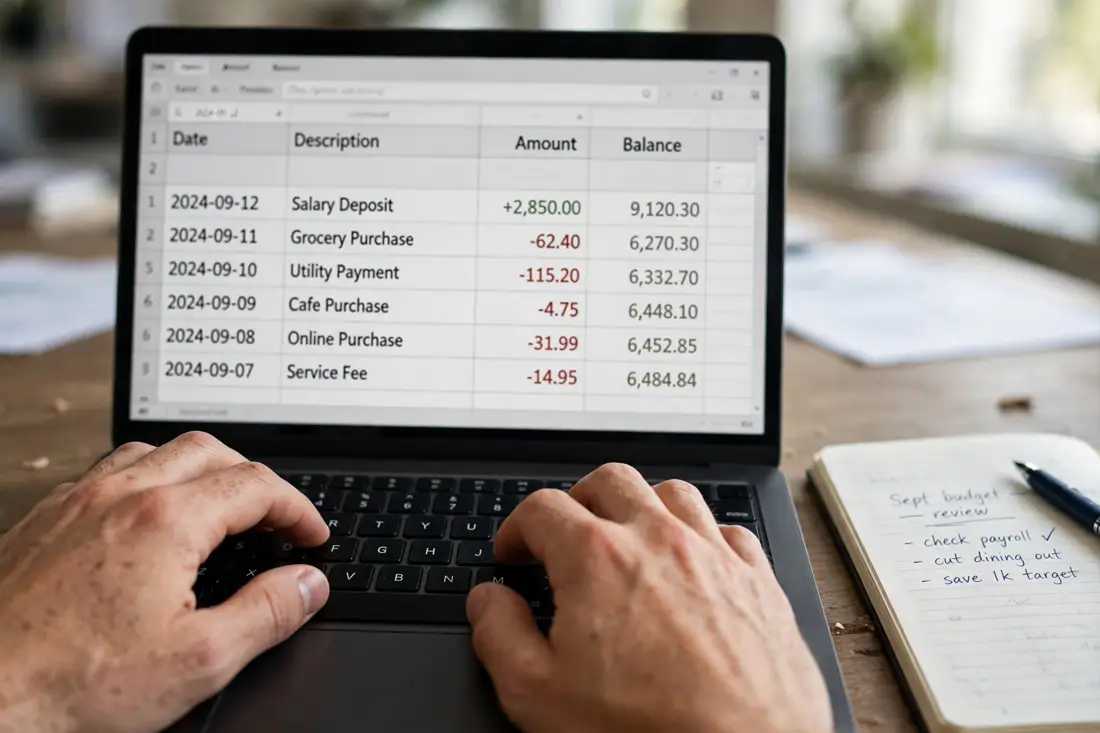
Step 1 — Download the activity file from PayPal. Go to Activity, then Statements (in some accounts, Reports and then Statements), choose the Activity download, set your date range, and select CSV. The converter needs a file with Gross and Type columns — the standard activity download, which carries Date, Type, name, Gross, Fee, and Net. Leave the transfer rows in: they look like clutter, but they are how the tool knows where one payout period ends and the next begins.
Step 2 — Upload the CSV. Drop the file into the tool above (CSV, up to 10 MB). The scan is free, needs no account, and the file is processed in memory and never stored. If the file does not look like a PayPal activity export — no Gross or Type column — the tool stops and tells you which download to use instead of guessing.
Step 3 — Review the periods and their tie-outs. PayPal never labels a payout, so the converter reconstructs periods from your own behaviour: it sorts the activity, takes each transfer-to-bank row in date order, and assigns every row since the previous transfer to the period that transfer closed. Each period is totalled — gross in, refunds, chargebacks, fees — and checked against that period's withdrawal amount. Activity after your last withdrawal is reported as an open period with no bank total to check against, which is correct: that money is still in PayPal, and the clearing account should still be holding it.
Step 4 — Download and import. The clearing-entries CSV is free; the .QBO download is on Pro. Create a bank account in QuickBooks named PayPal Clearing once, import the file into it, and match each transfer line against the withdrawal deposit in your checking feed. Whatever balance remains in the clearing account afterwards should equal the money still sitting in your PayPal balance — a check you can run at any month-end. Take card payments directly as well? The Stripe payout converter applies the same clearing model to Stripe's exports.
PayPal problems that break the tie-out: symptoms and fixes
Withdrawals booked as income, so sales count twice
The withdrawal is the most visible PayPal number in a bank feed, which is why it gets categorized as sales — and if the underlying payments were also recorded anywhere, the same money is now revenue twice. Even on its own it is wrong: it reports the net, not the gross, and it dates income by when you withdrew rather than when you sold. The fix is structural: withdrawals are only ever transfers out of the clearing account.
Holds and pending payments make a period come up short
Not every payment in the activity file was final when it downloaded. An eCheck clears days after the sale; PayPal can place a temporary hold on a payment under review. That money appears in your activity before it can be part of a withdrawal, so the period that contains the sale can show a difference against the withdrawal that closed it — and the held money then settles inside a later period's arithmetic. The converter counts each row in the period where it appears in the file, which is the same place your withdrawal puts it; when a period flags a difference, check PayPal for holds and pending payments in that window first, before assuming an error.
The Fee column never made it into QuickBooks
PayPal does the hard part for you — the fee is printed on every row — and imports still lose it by mapping only one money column. Map Gross alone and fees vanish from the profit and loss statement; map Net as the sale amount and revenue is understated by exactly the fees. Either way the business looks more profitable per sale than it is. The converter reads all three columns: Gross to income, Fee to expense, Net as the arithmetic that has to tie to the withdrawal.
Overlapping downloads duplicate a few days every month
The classic PayPal duplicate is a date range chosen "to be safe": last month's file ended on the 31st, this month's starts on the 28th, and three days now exist in two files. Converted QBO entries carry unique IDs that protect the import, but the clean habit costs nothing: download contiguous, non-overlapping ranges, and let each withdrawal close exactly one period.
Three ways to get PayPal activity into QuickBooks, compared
| Route | What it costs you | Where it breaks |
|---|---|---|
| Connector / sync apps | A monthly subscription, and a live connection to maintain | A sync is only as good as its mapping: summarized syncs are a common source of fees posted to the wrong account and of duplicates when a sync overlaps a manual import. Check what yours actually posts, line by line, before trusting it |
| Spreadsheet hand-entry | Free, and survivable for a quiet month | PayPal activity is row after row of small payments; hand-entry skips fee rows, mistypes amounts, and gives you no period tie-out to prove the month before it enters the books |
| This file-based converter | The scan, summary, and CSV are free; the .QBO download is on Pro. No live connection to QuickBooks is offered or needed | You download and import a file per period — routine instead of automatic — and periods are reconstructed from your withdrawal rows, so an export with no withdrawals yet comes back as one open period |
Sellers who also run a storefront can keep the same discipline with the Etsy statement converter or the Square payout converter, and a plain bank CSV belongs in the CSV to QBO converter.
Similar tools
More payout converters for QuickBooks — fees and taxes handled.
 Stripe to QuickBooksConvert Stripe payouts into QBO entries with fees split out properly.Open tool
 Amazon to QuickBooksAmazon seller payouts converted into QuickBooks-ready files.Open tool
 Shopify to QuickBooksShopify payout reports mapped and converted for QuickBooks.Open tool
 Square to QuickBooksSquare payouts to QBO — sales, fees and taxes in the right lines.100% FreeOpen tool
 Etsy to QuickBooksEtsy payment files converted into QuickBooks-ready imports.100% FreeOpen tool
 CSV to QBO ConverterConvert any CSV or Excel file into a QBO file QuickBooks imports cleanly.Most popularOpen tool
Simple, transparent pricing
Start free. Only pay when you need more.
Free
Try it out — no card needed
- 8 pages free, forever
- CSV & Excel export
- Global banks support
- No credit card required
- All 34 free QuickBooks tools included
- ✕OFX / QFX export
- ✕Google Sheets
Basic
For light, occasional use
or $48/yr — save 20%
- 25 pages / month
- CSV & Excel export
- Global banks support
- All 34 free QuickBooks tools included
- Email support
- ✕Google Sheets
- ✕OFX / QFX export
Pro
Perfect for CAs & individuals
or $192/yr — save 20%
- 500 pages / month
- All export formats
- Google Sheets export
- Priority processing
- Smart Auto-Categorization (Beta)
- Pre-Export Analytics (Beta)
- All 34 free QuickBooks tools included
- Email support
- ✕API access
- ✕Team seats
Business
For CA firms & fintech teams
or $720/yr — save 20%
- 2,000 pages / month
- All export formats
- OCR for Scanned PDFs
- Direct Accounting Push (Coming Soon)
- Smart Auto-Categorization (Beta)
- Pre-Export Analytics (Beta)
- Secure Client Portal (Beta)
- API access
- 5 team seats
- All 34 free QuickBooks tools included
- Dedicated support
Frequently asked questions
Which PayPal export should I upload?
In PayPal, go to Activity, then Statements, and choose the Activity download as CSV. The converter needs the Date, Type, Gross, Fee, and Net columns that file carries. Leave the bank transfer rows in — the tool uses each transfer to a bank account to close one payout period and start the next.
Are PayPal withdrawals to my bank account income?
No. A withdrawal moves money you already earned from your PayPal balance to your own bank account — a transfer between two of your accounts, not new revenue. The income happened when buyers paid, at gross. This converter treats every withdrawal row as the transfer line out of the PayPal clearing account, so sales are counted once, when received.
How do I record PayPal fees in QuickBooks?
PayPal prints the fee on every activity row, in its own Fee column — the mistake is importing only Gross or only Net and throwing that column away. The converter reads the fee on each row and posts each period's total as an expense line through the clearing account, so revenue stays gross and the cost of taking PayPal payments shows as a real expense.
Why doesn't one of my periods tie out to its withdrawal?
Usually timing inside PayPal. A payment under a temporary hold, or an eCheck that had not cleared, appears in your activity before the money can be part of a withdrawal; it settles in a later period. A refund issued after the withdrawal was calculated lands in the next period too. The tool shows the difference per period so you can match it to the hold, the pending payment, or the late refund.
Is this PayPal to QuickBooks converter free?
The scan, the per-period summary, the tie-out check, and the clearing-entries CSV download are free with no account. The .QBO download is on Pro. Activity not yet withdrawn is reported as an open period with no transfer to check against — nothing is dropped just because the money is still sitting in PayPal.
Can I import the same PayPal period twice?
The converted entries carry unique transaction IDs derived from the period, and QuickBooks skips IDs it has already imported. The real duplicate risk with PayPal is overlapping downloads — one file ending on the 31st and the next starting on the 28th to be safe — fed through different routes. Keep date ranges non-overlapping and use one route per period.