CSV to QBO Converter
Turn any bank transaction CSV into a QuickBooks-ready QBO file: map your columns, check the balance chain, and import without duplicates.
Or drop a bank CSV export here
Try it without your own data first:
Bank-grade security — No account needed to scan · Processed in memory, never stored
How to convert a CSV to QBO

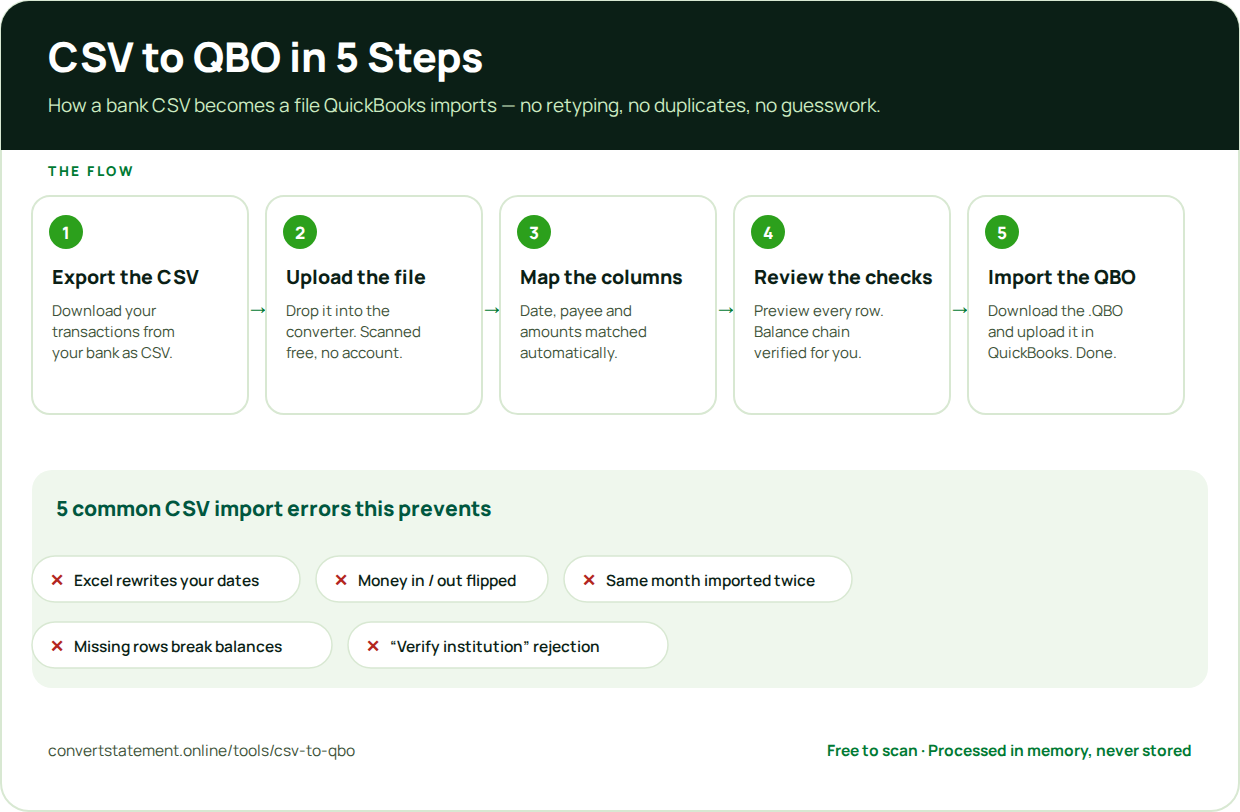
Export the CSV from your bank
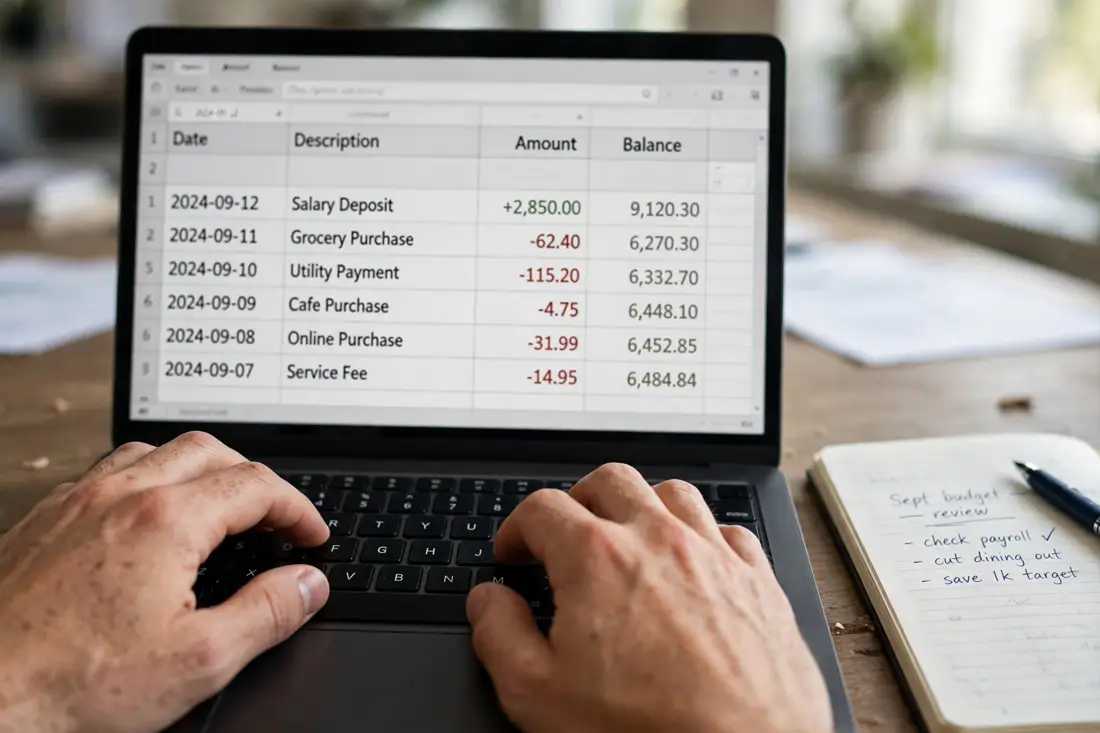
Download the date range you need as CSV — any export with a header row and date, description and amount columns works.

Upload it
Drop the CSV into the tool (files up to 10 MB). Nothing is installed, and the scan needs no account.

Check the column mapping
The tool auto-detects the date, payee and amount columns — fix any dropdown it guessed wrong and the file is re-read instantly.

Review the preview and the checks
Check the parsed transactions, the warning count for unreadable rows, and the balance-chain check if your CSV carries a running balance.
Download and import
Download the cleaned CSV free, or the .QBO on Pro, and import it in QuickBooks Online via Upload from file or in Desktop via Web Connect Files.
The CSV file your bank gives you is not the file QuickBooks wants
Every US bank lets you download your transactions as a CSV. Almost none of those downloads match what QuickBooks expects — and that gap is where hours of bookkeeping time disappear.
QuickBooks Online does accept a CSV upload in the banking center, but only in a narrow shape: either three columns (Date, Description, Amount) or four columns (Date, Description, Credit, Debit), with one date format used consistently from the first row to the last, and a file no bigger than 350 KB or about 1,000 lines. A real bank export rarely survives those rules. Chase adds its own column order, a credit union export carries a running balance and a check-number column, and a client’s PayPal or card CSV arrives with fees, holds and currency columns mixed in. QuickBooks Desktop is stricter still: it has no CSV bank import at all, so a CSV has to become a QBO or IIF file before Desktop will touch it.
The failures are not always loud, either. QuickBooks may refuse the file outright — or it may import it politely with a sign flipped, a debit column read as credits, or a week of transactions missing, and the problem only surfaces at reconciliation. Converting the CSV to a QBO (Web Connect) file first fixes the file instead of fighting the importer: the QBO carries the bank identity, the closing balance and a unique ID for every transaction, so QuickBooks imports it through the same door as a bank download — and recognizes it if it ever sees it again.
This page is for the people who hit that wall every month: bookkeepers handed a folder of client CSVs at cleanup time, businesses whose bank feed broke or never existed, and anyone moving a year of transactions into QuickBooks at tax time. Upload the CSV, check the mapping, and download a file QuickBooks actually wants.
| File | QuickBooks Online | QuickBooks Desktop |
|---|---|---|
| CSV | Banking upload only — 3 or 4 columns, one date format, up to 350 KB | Not accepted for bank transactions |
| QBO (Web Connect) | Accepted — banking upload | Accepted — Web Connect import |
| OFX | Not accepted directly — convert first | Not accepted directly — convert first |
| QFX | Not accepted (it is Quicken’s file) | Not accepted |
| IIF | Not used for bank imports | Accepted for lists and transactions |
How to convert a CSV to QBO with this converter
Step 1 — Export the CSV from your bank
Sign in to your bank and download the date range you need as CSV. Any export with a header row and date, description and amount columns works — Chase, Bank of America, Wells Fargo, Citi, Capital One and most regional banks and credit unions all export this shape.
Step 2 — Upload it
Drop the file into the tool above (CSV files up to 10 MB — years of transactions for most accounts). Nothing is installed, and the scan needs no account.
Step 3 — Check the column mapping
The tool reads your header row and auto-detects which column is the date, which is the payee, and whether amounts live in one signed column or a debit/credit pair. If it guesses wrong, change the dropdown and the file is re-read instantly. Three things are worth ten seconds here:
- Dates. MM/DD/YYYY is the format QuickBooks never argues with. If your export mixes formats (1/5/2026 next to Jan 6, 2026), fix the mapping now — a converted file freezes one format in place.
- Amounts. Map either one signed amount column (money out negative) or a debit and a credit column — never both. Debit rows become negative amounts and credit rows stay positive, which is the sign convention QuickBooks uses.
- Payees. Bank descriptions carry noise — location codes, trace numbers, truncated names. The payee text you see in the preview is what lands in your bank feed, where your categorization rules have to match it, so clean names beat raw ones.
Step 4 — Review the preview and the checks
You will see the parsed transactions, a warning count for any rows that could not be read (they are skipped and counted, never silently dropped), and — if your CSV carries a running-balance column — a balance-chain check: each balance must equal the previous balance plus its transaction. A break means the export itself is missing a row or carries a wrong amount, and it is far cheaper to learn that here than inside a reconciliation.
Step 5 — Download and import
The cleaned CSV export is free. The .QBO file is a Pro download — it is the file that carries the bank ID and per-transaction IDs into QuickBooks. Import it the normal way: in QuickBooks Online, go to Accounting → Bank transactions, open the drop-down next to Link account and choose Upload from file; in QuickBooks Desktop, use File → Utilities → Import → Web Connect Files. (Desktop users working with lists and journal-style imports instead have a dedicated CSV to IIF converter.)
Have a drawer of monthly CSVs rather than one? The Bulk Importer for QuickBooks merges many CSV files, maps the columns once and builds a single import file.
When conversions go wrong: the five failure points that matter
Negative amounts that are not negative
Some banks export money out in (parentheses), some add a “Dr” marker, and some simply list withdrawals as positive numbers in their own column. Read as a signed amount column, all three corrupt the import — deposits and payments swap places. The fix is mapping discipline: a debit/credit pair, or a genuinely signed column, never a hopeful guess.
Excel quietly rewriting your file
Opening a CSV in Excel and re-saving is the most common way good data goes bad. Excel re-formats dates to your computer’s locale, drops leading zeros from check and reference numbers, turns long card numbers into scientific notation, and may save amounts with currency symbols QuickBooks cannot parse. If you must edit in Excel, edit a copy, keep the date column formatted as MM/DD/YYYY text, and re-check the file afterwards — this converter’s preview shows you exactly what survived.
Split columns and totals rows
Statements exported “for print” often include running totals, subtotal lines or a balance carried across two columns. Those rows are not transactions. If a row has a date but no readable amount, this tool skips it and tells you — a warning count that does not match your expectations is the first sign your source file has furniture in it.
Duplicate transactions after re-import
A CSV upload has no memory: import the same month twice through QuickBooks’ CSV route and you own two of everything. A QBO file defends itself — every row carries a unique transaction ID (FITID) derived from its date, payee and amount, and QuickBooks refuses to import an ID it has already seen. If a file you did not convert looks suspicious, run it through the QBO File Checker before it reaches your books.
“The file is damaged” and “cannot verify your financial institution”
These two messages sound like your data is broken; usually the wrapper is. “Not a valid Web Connect file” (error OL-222) means the file’s OFX structure is malformed — a broken tag or a truncated download. The verify-institution message means the bank ID (INTU.BID) inside the file is missing or not on Intuit’s list. Files built here carry a valid ID; an older QBO or OFX file with a bad one can be repaired with the OFX to QBO fixer.

Three ways to get a CSV into QuickBooks, honestly compared
| Route | What it costs you | Where it breaks |
|---|---|---|
| Clean the CSV by hand in Excel, upload to QuickBooks Online | Free, and fine for one small file | Every import repeats the work; Excel rewrites dates and numbers; no duplicate protection; Desktop cannot use it at all |
| Connect the live bank feed | Nothing to convert | Feeds disconnect, many only fetch a limited history window, some banks and card accounts have no feed — and a feed cannot help with last year’s files or a client’s exports |
| Convert the CSV to QBO first (this page) | A few minutes per file; the .QBO download is on Pro | You still review the mapping — no converter can know your chart of accounts — but the file imports into Online and Desktop, carries balances and IDs, and re-imports safely |
Starting from a PDF statement rather than a CSV? That is a different first step — the PDF to QBO converter handles the statement itself.
Similar tools
More converters and checkers that work with CSV and QBO files.
 CSV to OFX ConverterTurn a spreadsheet of transactions into an OFX file — the format banks and finance apps exchange.100% FreeOpen tool
 CSV to QFX ConverterBuild a QFX file from CSV rows — Quicken's version of OFX, ready to import.100% FreeOpen tool
 CSV to IIF ConverterBuild IIF files for QuickBooks Desktop imports — no manual mapping pain.100% FreeOpen tool
 QBO to CSV ConverterTurn a QBO file back into a clean CSV or Excel sheet you can edit.100% FreeOpen tool
 OFX to QBO + BID FixerFix broken OFX/QFX files and the INTU.BID error so QuickBooks accepts them.100% FreeOpen tool
 QBO File CheckerVerify a QBO file's balance chain and structure before you import it.Open tool
Simple, transparent pricing
Start free. Only pay when you need more.
Free
Try it out — no card needed
- 8 pages free, forever
- CSV & Excel export
- Global banks support
- No credit card required
- All 34 free QuickBooks tools included
- ✕OFX / QFX export
- ✕Google Sheets
Basic
For light, occasional use
or $48/yr — save 20%
- 25 pages / month
- CSV & Excel export
- Global banks support
- All 34 free QuickBooks tools included
- Email support
- ✕Google Sheets
- ✕OFX / QFX export
Pro
Perfect for CAs & individuals
or $192/yr — save 20%
- 500 pages / month
- All export formats
- Google Sheets export
- Priority processing
- Smart Auto-Categorization (Beta)
- Pre-Export Analytics (Beta)
- All 34 free QuickBooks tools included
- Email support
- ✕API access
- ✕Team seats
Business
For CA firms & fintech teams
or $720/yr — save 20%
- 2,000 pages / month
- All export formats
- OCR for Scanned PDFs
- Direct Accounting Push (Coming Soon)
- Smart Auto-Categorization (Beta)
- Pre-Export Analytics (Beta)
- Secure Client Portal (Beta)
- API access
- 5 team seats
- All 34 free QuickBooks tools included
- Dedicated support
Frequently asked questions
Can I import a CSV into QuickBooks Online directly?
Yes — through Accounting → Bank transactions → Upload from file — but only a clean one: three or four columns in QuickBooks' expected layout, one date format, under 350 KB. Anything messier is worth converting to QBO first, which also gives you duplicate protection the CSV route does not have.
Can QuickBooks Desktop import a CSV of bank transactions?
No. Desktop has no native CSV bank import. Convert the CSV to a QBO file and import it through File → Utilities → Import → Web Connect Files, or use an IIF file for Desktop-style imports.
Why does QuickBooks say some of the info in my file is missing?
That is QuickBooks Online's message for a CSV it cannot read: an unrecognized header, numbers sitting in the description column, or mixed date formats are the usual causes. Re-check the column mapping here and keep one date format throughout the file.
Will importing the same file twice create duplicates?
Through a QBO file, no — QuickBooks matches on the unique transaction ID inside the file and skips rows it has already imported. Through a plain CSV upload, yes, it can: the CSV route has no ID check, so overlapping date ranges duplicate silently.
My CSV has separate debit and credit columns. What do I map?
Map both columns and leave the single Amount column unmapped. Money out (debits) becomes negative amounts and money in (credits) stays positive — the convention QuickBooks expects. A row with neither side filled is skipped and counted in the warnings.
Is this converter free?
The scan, the column mapping, the balance check and the cleaned CSV export are free with no account. The .QBO download is on the Pro plan. Either way, your file is processed in memory and never stored.