Invoice Import Validator + Formatter
Check an invoice CSV before QuickBooks does: catch missing customers, duplicate invoice numbers and bad amounts, fix dates and formatting automatically, and download a clean file ready to import.
Or drop an invoice CSV here
No file handy? Download a sample invoice CSV with a few planted issues, then drop it in above to see the checker work:
Bank-grade security — No account needed · Processed in memory, never stored
How to validate invoices for QuickBooks import

Export your invoices
Save your invoice list as a CSV from your spreadsheet or billing tool — it needs at least a customer column and an invoice date column.

Upload it here
Drop the CSV in. Every row is checked against what QuickBooks Online invoice import needs.

Review errors and fixes
Read the row-by-row table: errors in red need your attention, fixes in amber were already applied for you.

Download and import
Download the QuickBooks-ready CSV — clean rows only — and import it through QuickBooks Online's invoice import.
Why invoice imports fail at the worst moment
QuickBooks Online only checks an invoice file at the moment you import it — and one bad row can stall the whole batch while a month-end close is waiting on it. A date in ISO format, an amount typed as $1,250.00, a blank customer, or the same invoice number used twice are all easy to miss in a spreadsheet and painful to untangle inside QuickBooks afterwards, where a half-imported batch means some customers were billed twice and others not at all.
This checker moves that review earlier. You upload the file here first, and every row is checked against what the QuickBooks importer actually requires — with the safe fixes already applied and shown on the row. What downloads is a file that has already passed the tests the importer would have run, so the import itself becomes the boring part.
The QuickBooks Online invoice import specification
QuickBooks Online's invoice import expects one row per invoice line, in a fixed column layout. Dates must be in MM/DD/YYYY — the single most common reason a clean-looking file is refused. The columns the downloaded file uses, and what each one must hold:
| Column | What it holds | The rule |
|---|---|---|
| InvoiceNo | Invoice number | Must be unique within the file; a repeat is flagged as a duplicate. |
| Customer | Customer name | Required. A blank customer is an error, never a fix. |
| InvoiceDate | Invoice date | Must read MM/DD/YYYY in the final file. |
| DueDate | Payment due date | Optional; carried through when your file has one. |
| ItemName | Product or service | Required per line — QuickBooks bills against items, not free text. |
| ItemQuantity | Quantity billed | Must be numeric when present. |
| ItemRate | Price per unit | Must be numeric when present. |
| ItemAmount | Line total | Must be positive; calculated from quantity × rate when missing. |
Two details of the specification trip people up. First, one row is one line: an invoice with three services on it is three rows sharing the same InvoiceNo, Customer, and dates — QuickBooks groups them back into a single invoice on import. Second, the importer reads the columns by the mapping you confirm on its screen, so the header names in your source file can vary; what cannot vary is the content — a real customer, a real date, a real item, and a positive amount on every row.
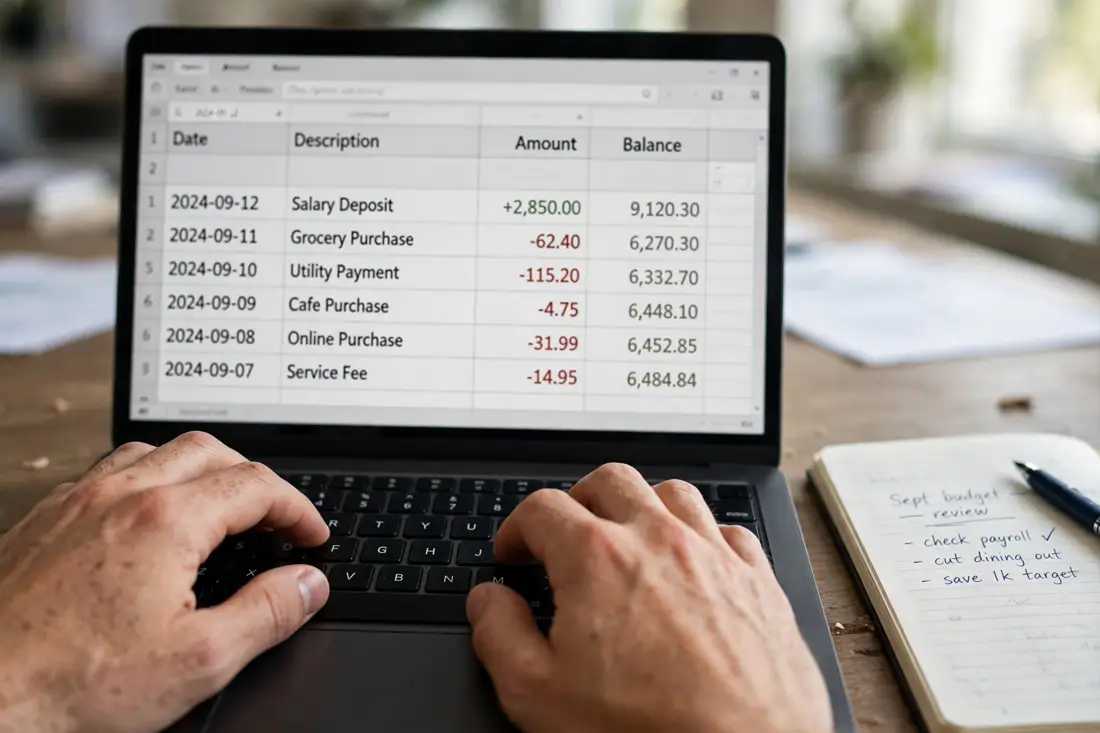
One limit sits above the row rules: QuickBooks Online's invoice import accepts at most 1,000 rows and 100 invoices per upload. A perfectly clean file that crosses either cap still fails at upload time, so the batch is part of the check: count your rows (the summary above does it for you), count your distinct invoice numbers, and split a large file into uploads that stay under both. Splitting by invoice keeps multi-line invoices whole — never cut through the middle of one invoice's rows.
What the checker enforces, row by row
Every row gets one of three verdicts — clean, fixed, or error — and the report shows which verdict it earned and why:
| Check | What triggers it | Verdict |
|---|---|---|
| Missing customer | The customer cell is blank | Error — row held out of the download |
| Duplicate invoice number | Same InvoiceNo as an earlier row | Error — first use kept, repeat flagged |
| Unreadable date | The date cell cannot be parsed at all | Error |
| Date in the wrong format | ISO or another readable format | Auto-fix — rewritten as MM/DD/YYYY |
| Formatted amount | $ signs, commas, or spaces in the amount | Auto-fix — cleaned to a plain number |
| Missing amount | Amount blank, quantity and rate present | Auto-fix — calculated as quantity × rate |
| Negative or zero amount | Amount is zero or below | Error — invoice lines must be positive |
| Non-numeric quantity or rate | Text where a number belongs | Error |
Preparing your invoice CSV
The checker is forgiving about headers — Customer, Customer Name, and Client are all recognized, as are Invoice Date and Txn Date — but a few habits make every file pass the first time. Keep one row per invoice line rather than one row per invoice with the lines crammed into a notes field. Keep customer names spelled exactly the way they appear in QuickBooks; a new spelling creates a new customer there. Make sure the amount column holds the line total, not a running balance of the whole file. And if your billing tool exports tax as separate columns, leave them out of this file — the import maps the eight columns above, and the cleaned download carries exactly the layout it expects.
A worked example: three rows, three outcomes
A three-line extract from a sample export shows how the verdicts land (sample data, shown for illustration):
| InvoiceNo | Customer | InvoiceDate | Amount | Result |
|---|---|---|---|---|
| 1041 | Bluepeak Studio | 01/05/2026 | 850.00 | Clean — imports as-is |
| 1042 | Harbor Dental | 2026-01-07 | $1,200.00 | Fixed — date rewritten to 01/07/2026, amount cleaned to 1200.00 |
| 1043 | (blank) | 01/09/2026 | 300.00 | Error — no customer; held out of the download |
Two of the three rows download in the cleaned file. The third is not lost — it stays in the report with its error, ready to be corrected in the source spreadsheet and run through again. Nothing is silently dropped and nothing is silently changed: every fix is listed on the row it touched.
Importing the cleaned file into QuickBooks Online
- In QuickBooks Online, open Settings → Import data and choose Invoices.
- Upload the cleaned CSV you downloaded from this page.
- Match each QuickBooks field to the column it names — the layout already follows the importer's own column names, so the mapping is one-to-one.
- Review the preview, import, and spot-check two or three invoices against your source file.
Imported invoices arrive as single-line invoices, ready to send or to reconcile against payments when they land. Keep the source file and the report together — if a customer questions an invoice later, the report shows exactly what was imported and what was fixed on the way in.
When the import still goes wrong
The same invoices appear twice
Unlike bank feeds, the invoice import does no duplicate detection of its own — importing the same cleaned file twice creates a second set of invoices. Import once, and if a batch must be redone, delete or void the first set in QuickBooks before importing again. When the importer itself reports an error, the QBO import-error decoder explains what the message means.
A customer shows up twice in QuickBooks
The name in the file did not match the name on the existing customer record — "Harbor Dental" versus "Harbor Dental LLC" is enough. Standardize customer names in your source file before importing (this checker reports exactly the names it found; it never merges them silently), and merge the duplicate customers inside QuickBooks afterwards.
QuickBooks rejects an invoice number it already has
If an invoice number in the file already exists in QuickBooks from an earlier import or a manual entry, QuickBooks will not overwrite it. The checker catches duplicates inside your file; duplicates against QuickBooks' own history only it can see. Renumber in the source file, or enter those few invoices by hand and import the rest.
An item in the file does not exist in QuickBooks
QuickBooks bills against its own product and service list. Depending on your import settings, an unknown ItemName is either rejected or created on the fly — and a slightly different spelling ("Consulting" versus "Consulting Services") creates a near-duplicate item that splits your sales reporting. Keep item names in the source file identical to the names in QuickBooks, and tidy the item list there after any large import.
Fixing the rows that were left out
The rows held back are the real work list, and they are usually quick: a missing customer is a lookup in your billing system, a duplicate number is a renumber, an unreadable date is a typo. Fix them in the source file — not in QuickBooks, and not in the cleaned download — so the next export starts from corrected data. Then run just those rows through the checker again and import the small follow-up file. Your source data gets cleaner every cycle, which is the quiet benefit of checking before importing instead of repairing afterwards.
Pair this page with the CSV to QBO converter for the bank side of the same month-end, and the Receipt to QuickBooks converter for the expense side — invoices in, bank activity in, receipts in, each verified before it reaches QuickBooks.
Similar tools
More checkers for files headed into QuickBooks.
 QBO Import Error DecoderPaste a QuickBooks import error and learn what it means and how to fix it.Open tool
 1099 Vendor CheckerCheck which vendors cross the 1099 threshold and need forms.100% FreeOpen tool
 Receipt to QuickBooksSnap a receipt and get a QuickBooks-ready expense entry from it.Open tool
 CSV to QBO ConverterConvert any CSV or Excel file into a QBO file QuickBooks imports cleanly.Most popularOpen tool
 Payroll Journal GeneratorBuild a balanced payroll journal entry for QuickBooks in minutes.100% FreeOpen tool
 QBO File CheckerVerify a QBO file's balance chain and structure before you import it.Open tool
Simple, transparent pricing
Start free. Only pay when you need more.
Free
Try it out — no card needed
- 8 pages free, forever
- CSV & Excel export
- Global banks support
- No credit card required
- All 34 free QuickBooks tools included
- ✕OFX / QFX export
- ✕Google Sheets
Basic
For light, occasional use
or $48/yr — save 20%
- 25 pages / month
- CSV & Excel export
- Global banks support
- All 34 free QuickBooks tools included
- Email support
- ✕Google Sheets
- ✕OFX / QFX export
Pro
Perfect for CAs & individuals
or $192/yr — save 20%
- 500 pages / month
- All export formats
- Google Sheets export
- Priority processing
- Smart Auto-Categorization (Beta)
- Pre-Export Analytics (Beta)
- All 34 free QuickBooks tools included
- Email support
- ✕API access
- ✕Team seats
Business
For CA firms & fintech teams
or $720/yr — save 20%
- 2,000 pages / month
- All export formats
- OCR for Scanned PDFs
- Direct Accounting Push (Coming Soon)
- Smart Auto-Categorization (Beta)
- Pre-Export Analytics (Beta)
- Secure Client Portal (Beta)
- API access
- 5 team seats
- All 34 free QuickBooks tools included
- Dedicated support
Frequently asked questions
What does the invoice import checker validate?
Every row of your invoice CSV against what QuickBooks Online's invoice import needs: a customer on every row, a readable invoice date, a product/service item per line, numeric quantity and rate, and a positive amount. It also applies the safe fixes — dates reformatted to MM/DD/YYYY, currency symbols cleaned, a missing amount calculated from quantity × rate — and returns a cleaned CSV holding only the rows with no errors.
How many invoices can QuickBooks Online import at once?
QuickBooks Online's invoice import accepts up to 1,000 rows and 100 invoices per upload. This checker does not impose those caps — it checks files of any size — so use its row count to plan your batches: a file over 1,000 rows, or spanning more than 100 distinct invoice numbers, has to be split into uploads that stay under both limits.
What if the same invoice number appears twice in my file?
The checker flags it as a duplicate document number, naming the line where the number was first used. One caution: multiple lines of one invoice legitimately share an invoice number in some exports, while in QuickBooks a repeated number across different invoices causes exactly the duplicate-number error people hit at upload. Check the flagged rows — if they are separate invoices, renumber one before uploading.
Do customer and item names have to match QuickBooks exactly?
Yes — QuickBooks Online matches customers and products/services by name at import, and a name that does not match an existing one can fail the row or create a duplicate customer or item. This checker validates the file itself (it cannot see your QuickBooks lists), so before uploading, compare the customer and item names in the cleaned CSV against the names in your QuickBooks — spelling, punctuation and all.
What happens to rows with errors?
They are left out of the downloaded CSV, with the row-by-row report naming each error and the line it sits on. A bad row therefore cannot fail the whole QuickBooks upload. Fix the row in your source file, re-check it, and import it in the next batch.
Is my data uploaded or stored, and is the checker free?
The checker is fully free with no account. Your CSV is processed in memory to build the report and the cleaned download, and is not stored afterwards. We never sell or share your financial data.